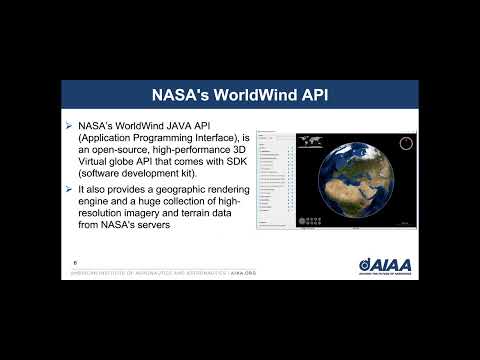
Presentation about this project:
This tutorial is using ubuntu 18.0.4
tutorial with picture: https://docs.google.com/document/d/1m19amdK6z0IX9CIw9OhGoZBDoZD1cXymzxexySjbbTw/edit?usp=sharing
To install OpenJDK 11 in Ubuntu, use the commands listed below.
- Add the repository sudo add-apt-repository ppa:openjdk-r/ppa
- Update package list sudo apt-get update
- Install openjdk-11-jdk sudo apt install openjdk-11-jdk
Install Apache NetBeans on Ubuntu using the Snap Store | Snapcraft sudo snap install netbeans --classic
https://github.com/NASAWorldWind/WorldWindJava/releases
- Check the project properties->Libraries entry (right click on the project node in the tree, select Properties) and make sure the Java Platform is set properly. Screen shot below.
- Then "Clean and Build" the project using the tool bar icon.
- Open one of the example files, can start with ApplicationTemplate.java or SimplestPossibleExample.java.
- Right click and select "Run File" or use shift + F6 to compile and run file to see the App
-
User Manual: Look at Netbeans https://www.digi.com/resources/documentation/digidocs/90001438/Default.htm#reference/r_xb_java_library.htm
-
Download Xbee Java Library: https://github.com/digidotcom/xbee-java/releases
Executable files Below is a guide on how to install executable files under Ubuntu. Executable files can be recognized by the extension .bin and .run. Before the installation procedure can be started, the user rights of such file needs to be changed.
Changing the user rights: To run an executable file the user rigths of those files must be set correct. This can be done by doing the following: Open a terminal Browse to the folder where the executable file is stored Type the following command: for any . bin file: sudo chmod +x filename.bin for any .run file: sudo chmod +x filename.run When asked for, type the required password and press Enter Now the file can be executed by the current user with root privileges.
Installing an executable file Now the file can be run in the terminal by typing the following command in the terminal: For any .bin file: ./filename.bin For any .run file: ./filename.run If the installation procedure doesn't start, try to execute the file by adding sudo before the command. To complete the installation procedure, the given instructions needs to be followed. Once the installation procedure is finished, the terminal can be closed.
- Configure DigiMesh devices: Both devices in API mode
- Create Project: To create a new Java project in NetBeans, follow these steps:
Navigate to the File menu and select New project.... You are prompted with a New Project window.
In the Categories frame, select Java > Java Application on the right panel. Click Next. Enter the Project Name, myFirstXBeeApp, and the Project Location. Clear the Create Main Class option. This will be created later. Click Finish to create the project. The window closes and the project is listed in the Projects view at the left side of the IDE.
- Configure the project - Netbeans Click File > New > Folder, and create a directory called libs in the root of the project to create a directory. Copy the xbee-java-library-X.Y.Z.jar file and the contents of the extra-libs directory from the XBJL-X.Y.Z folder to the libs directory. From Projects view, right-click your project and go to Properties. In the list of categories, go to Libraries and click the Add JAR/Folder button. In the Add JAR/Folder window, navigate to the myFirstXBeeApp project location, go to the libs directory, and select only the following files: xbee-java-library-X.Y.Z.jar rxtx-2.2.jar slf4j-api-1.7.12.jar slf4j-nop-1.7.12.jar Select Run in the left tree of the Properties dialog. In the VM Options field, add the following option: (The path is relative to the "myFirstXBeeApp’s" path.)
-Djava.library.path=libs/native/Linux/x86_64-unknown-linux-gnu
- Add the application source code - Netbeans
- Copy and paste this code: https://www.digi.com/resources/documentation/digidocs/90001438/reference/r_main_app_java_source_not_cellular.htm
package com.digi.xbee.example;
import com.digi.xbee.api.WiFiDevice; import com.digi.xbee.api.XBeeDevice; import com.digi.xbee.api.exceptions.XBeeException; import com.digi.xbee.api.models.XBeeProtocol;
public class MainApp {
/* Constants */
// TODO Replace with the port where your sender module is connected to.
private static final String PORT = "/dev/ttyUSB0";
// TODO Replace with the baud rate of your sender module.
private static final int BAUD_RATE = 9600;
private static final String DATA_TO_SEND = "Hello XBee World!";

public static void main(String[] args) {
    XBeeDevice myDevice = new XBeeDevice(PORT, BAUD_RATE);
    byte[] dataToSend = DATA_TO_SEND.getBytes();

    try {
        myDevice.open();

        System.out.format("Sending broadcast data: '%s'", new String(dataToSend));

        if (myDevice.getXBeeProtocol() == XBeeProtocol.XBEE_WIFI) {
            myDevice.close();
            myDevice = new WiFiDevice(PORT, BAUD_RATE);
            myDevice.open();
            ((WiFiDevice)myDevice).sendBroadcastIPData(0x2616, dataToSend);
        } else
            myDevice.sendBroadcastData(dataToSend);

        System.out.println(" >> Success");

    } catch (XBeeException e) {
        System.out.println(" >> Error");
        e.printStackTrace();
        System.exit(1);
    } finally {
        myDevice.close();
    }
}
}
-
Check port number in ubuntu terminal: dmesg | grep tty
-
If Netbeans can not find port, make sure do this in terminal: sudo usermod -a -G dialout
- Add xbee library into WWJ library folder (worldwind-v2.2.0), xbee library include: xbee-java-library-1.3.0.jar rxtx-2.2.jar slf4j-api-1.7.12.jar slf4j-nop-1.7.12.jar Folder: native
Go to netbeans and add xbee library into WWJ
WWJ->Properties->Run->VM Options: -Djava.library.path=native/Linux/x86_64-unknown-linux-gnu
Create XBeeMain Class Package: com.digi.xbee.emaple
Copy and paste XbeeMain.java content:
Simulation: Use SendToGCS.py to send location data. pip3 install Xbee if ModuleNotFoundError: No module named 'xbee'